


QR & Barcode Scanner Launcher
4.210.12K Reviews
App Specs
- Version
- 3.19.0
- Updated On
- License
- Free
- Downloads
- 5,000,000+
- Developer
- AtomApplications
- Categories
- Tools
- Platform
- Android
Screenshots

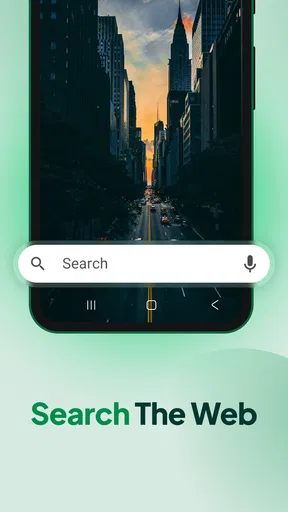
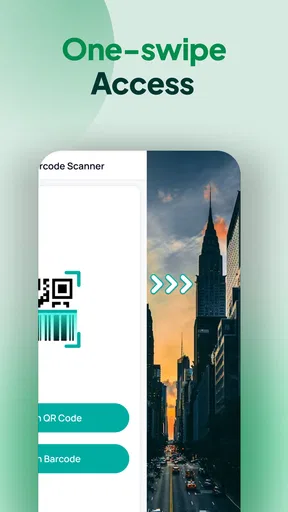
 Analysis by AppCompare
I find a scanner most useful when it removes a small interruption from the day: instead of typing a long address or searching a product by name, I point my phone at a code and move on. QR & Barcode Scanner Launcher is aimed at exactly that kind of quick task. It is a free tools app from AtomApplications, and its appeal is less about turning scanning into a hobby than making an occasional scan easy to reach.
Where scanning can go wrong
The first snag is often not the scanner but the code itself. A QR code on a glossy package, a dim menu, or a screen with glare can be hard for any phone camera to read. I’d first move closer or farther until the whole code is visible, steady the phone, and change the angle to reduce reflections. If the code is damaged or partly covered, trying repeatedly may not help; a clearer copy is the better fix.
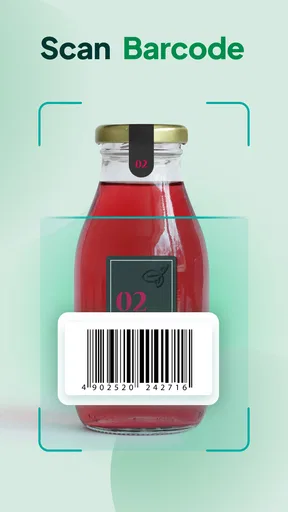
Barcodes can be less forgiving than QR codes because their narrow lines need to be seen clearly. In a shop, I’d avoid casting a shadow over the label and make sure the camera is aimed squarely at it. A quick scan is convenient for checking an item, but it does not by itself guarantee that a product match, price, or online result is current. I treat any result as a starting point and verify important details before buying.
Simple checks before the first scan
The app is listed for Android 10 and newer, so checking the phone’s software version is a sensible first step if installation is unavailable. It is rated for Everyone, has a 4.2 average from around 29,000 ratings, and has passed 5 million installs. Those figures suggest a well-used utility, but they do not tell me whether it will suit every device or scanning situation.
After installing, I’d open the app and follow the camera-access prompt if the phone presents one. If the preview does not appear, I’d check the app’s camera access in the device settings, close other apps that may be using the camera, then reopen the scanner. These are ordinary troubleshooting steps rather than a guarantee that every camera issue is caused by this app.
Recovering a useful scanning workflow
For a code that leads to a website or another action, I prefer to pause long enough to read what the scan is about before continuing. That small check is especially useful for codes received in messages or placed in unfamiliar locations. A scanner makes the encoded content easier to access; it does not make that content trustworthy.
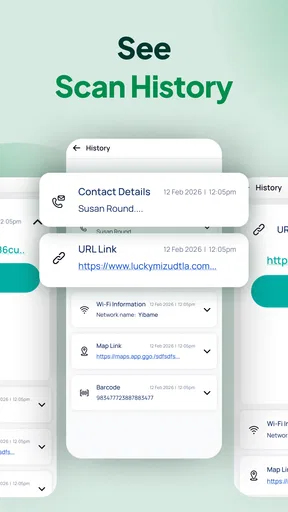
The History option is handy when I scan something in a hurry and need to find it again. I’d use it as a short-term reference for things like a menu link or a product code, rather than assuming it replaces a dedicated bookmark, shopping list, or record-keeping app. If a scan seems to disappear, I’d return to History first and check whether I can repeat the action from there.
Worth Reading Before You Choose

EA SPORTS FC Mobile 26 Is a Bigger Football Game, but It Takes Time

Flipboard Shows What News Apps Must Do Beyond the Feed

Switching to Android Auto Means Rethinking Your Driving Routine

Google Calendar Makes a Crowded Week Easier to Manage

Ludo King Makes the Most of the Minutes Between Plans

Baby Panda World Brings Quick Play to Modern Phones, but Its Game Library Feels Busy
When the app may not be the problem
If one code fails while others work, the printing, screen brightness, or condition of that particular code may be the issue. If every code fails, I’d check camera access, lighting, focus, and whether another camera-using app is interfering before reinstalling anything. This approach helps separate a one-off bad code from a broader setup problem without making unnecessary changes.
There is also a practical limit to a general-purpose scanner: it can read codes, but it is not a substitute for the service behind one. A shop’s current stock, a restaurant’s menu, or a website’s safety still depends on the destination and its operator. I use the scan to save typing, not as proof that whatever opens is accurate or safe.
Getting Started with QR & Barcode Scanner Launcher
First off, downloading and setting up the QR & Barcode Scanner Launcher is a breeze. Just search for it in your app store, hit download, and you're good to go. No complicated setup or unnecessary permissions, which is always a plus in my book.
Once you open the app, you're greeted with a straightforward interface. It’s clean and intuitive, so you won’t find yourself fumbling around trying to figure out what to do. The main screen is basically a big scanning area, ready to spring into action the moment you point your camera at a QR code or barcode.
The Scanning Experience
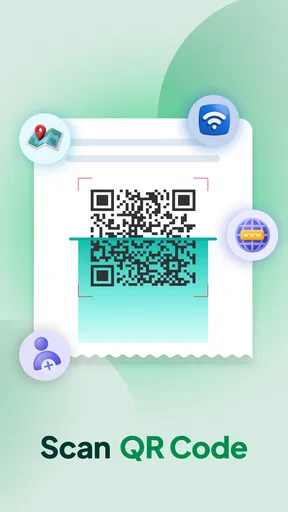
Now, let’s talk about the scanning itself. This app is fast. I mean, blink-and-you-miss-it fast. Whether you're scanning a QR code for a restaurant menu or a barcode to check out prices while shopping, it gets the job done instantly. Plus, it supports a variety of formats, so you’re not limited to just QR codes.
One cool feature I love is the ability to create your own QR codes. Whether you want to share your Wi-Fi password with friends or send a quick link, it’s super handy. Just enter the info you want to convert, and boom, you’ve got a QR code ready to share.
Why It Stands Out
What sets this app apart from other scanners is its launcher capability. You can customize actions for different scans, like automatically opening a specific app or website. It’s like having a smart assistant that reads your mind. Well, almost.
And if you’re worried about privacy, the app doesn’t store your data, which is a relief. In today’s digital age, knowing your info isn’t floating around is a big deal.
Where it fits in a normal day
A realistic use is a grocery run: I can scan a barcode to look into an item, then keep moving instead of typing its name into a search box. At a café, a QR menu can save a few steps, while a QR code I make myself could let a guest open a link without copying it character by character. These are small conveniences, but they are exactly where a lightweight scanner earns its place.
The History feature makes more sense when I treat it as a recovery aid. If I scan a code while someone is waiting, I can finish the conversation and return to the scan afterward rather than stopping to save every result manually. For anything I know I’ll need next week, though, I’d copy or bookmark the destination in the app meant for keeping it. A scan history is useful for retrieval, not a full filing system.
Choosing between this and built-in scanning
Many phones can recognize QR codes through the camera app, so I would not install a separate scanner just to read an occasional menu code if the built-in camera already handles that reliably. The case for this app is stronger when I want barcode scanning, a history to revisit, code creation, or the launcher’s customizable actions in one place. That combination is more useful to someone who scans regularly than to someone who encounters a code once in a while.
Compared with a specialized shopping app, a general scanner is a quicker first step but not necessarily the better final destination. It can help me read a barcode, yet a retailer’s own app may be better for stock, loyalty features, or purchase details. Likewise, if I need to manage many codes for work, I’d choose a dedicated inventory or ticketing tool rather than expecting a basic phone scanner to organize a larger operation.
Small habits that make it more useful
When creating a QR code, I’d check the information carefully before sharing it. A typo in a link or a mistake in text is easy to pass along once it has been turned into an image. For Wi-Fi details in particular, I’d share the code only with people I intend to give access to; convenience does not remove the need to consider who can use the information.
I also find it helpful to decide what should happen after a scan before changing launcher actions. Automatic opening can save a tap for a familiar, trusted workflow, but a preview or deliberate confirmation is preferable when I do not recognize the source. The right balance depends on how often I scan known codes versus unfamiliar ones. Convenience is valuable, but not if it makes me stop checking what I’m opening.
If the camera stays blank, the code remains unreadable, or the result is unexpected, I would not assume that reinstalling is the first answer. I’d test another well-lit code, check the camera setting, and try again with the code filling a sensible part of the view. If only a single printed code fails, I’d ask for another copy or use the provider’s direct website or app instead. That is often the quicker route than troubleshooting a scanner that is otherwise working.
Who should choose it—and who can skip it
I’d recommend it to people who scan both QR codes and barcodes often enough to value a dedicated place for the task, especially if they want to revisit recent scans or make QR codes of their own. The app is free, and its current version is 3.11.0, which makes it an easy utility to consider without treating it as a major commitment. AtomApplications has built a tool with a clear everyday purpose rather than a complicated system to learn.
I’d skip it if the phone’s built-in camera already covers my occasional QR needs, or if I need verified product comparisons, professional inventory management, or a specialized way to handle tickets and payments. A scanner can make encoded information accessible, but it cannot replace those services. The app’s 8,800 reviews give a reader more feedback to consider alongside its rating, but personal fit still comes down to which codes I scan and what I need to do next.
Wrapping It Up
All in all, the QR & Barcode Scanner Launcher is a solid app that does exactly what it promises and then some. It’s efficient, user-friendly, and adds a layer of convenience to everyday tasks. If you’re on the hunt for a reliable scanner that offers a little extra, give this app a shot. You might just wonder how you ever lived without it.
Pros
- Fast scanning with accurate results.
- Supports multiple barcode formats.
- User-friendly interface design.
- Low battery consumption during use.
- Offline functionality available.
Cons
- Contains in-app advertisements.
- Limited customer support options.
- Occasional scanning delays.
- No customization for themes.
- Requires camera permissions.
FAQs for QR & Barcode Scanner Launcher
What features does the QR & Barcode Scanner Launcher offer?
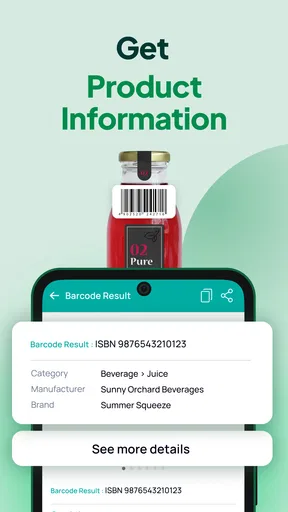
The QR & Barcode Scanner Launcher offers a range of features including fast scanning capabilities for various barcode formats, direct web link access, and the ability to save scanned codes for future reference. It also supports product searches and price comparisons, providing a comprehensive tool for both personal and professional use.
Is the QR & Barcode Scanner Launcher compatible with all Android and iOS devices?
The QR & Barcode Scanner Launcher is designed to be compatible with most Android and iOS devices, requiring a minimum operating system version for optimal performance. Before downloading, users should check their device specifications and ensure they meet the app's requirements to avoid compatibility issues.
How secure is the QR & Barcode Scanner Launcher in terms of user privacy?
User privacy is a priority for the QR & Barcode Scanner Launcher. The app does not store personal data or share scanned information with third parties without consent. It’s important to review the app’s privacy policy to understand how data is handled and what permissions are required.
Does the QR & Barcode Scanner Launcher require an internet connection to function?
While the QR & Barcode Scanner Launcher can scan codes offline, an internet connection is required to access certain features such as opening web links or performing product searches. For the full experience, it’s recommended to use the app with a stable internet connection.
Are there any in-app purchases or ads in the QR & Barcode Scanner Launcher?
The QR & Barcode Scanner Launcher may include ads, with an option to remove them through in-app purchases. These purchases can enhance the user experience by providing an ad-free environment. It's advisable to check the app's description for details on available purchases and their benefits.


